AMSA
Week 10: Dockerfile & DockerHub
Recap
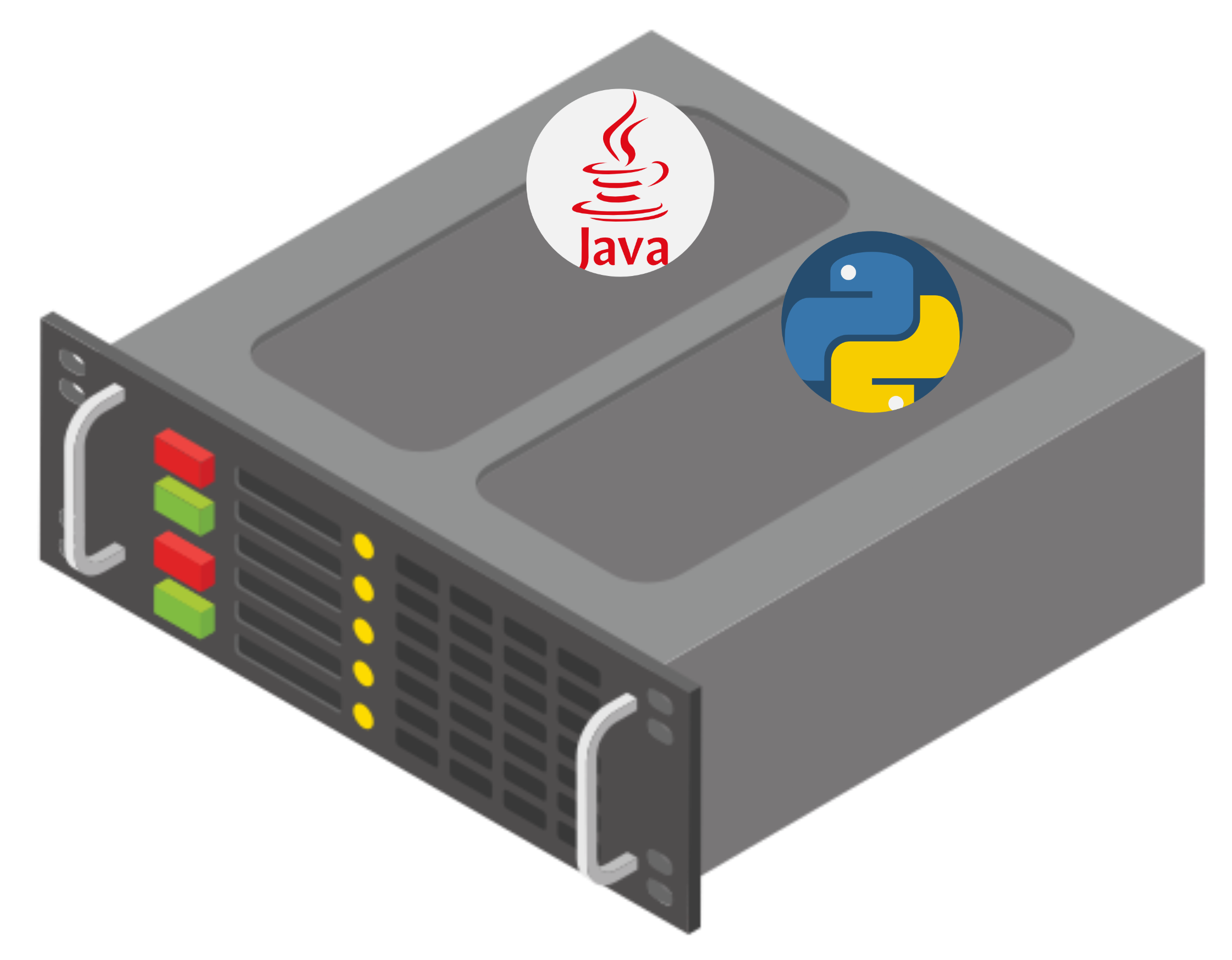
Let’s imagin we have server with lots of resources

We first deploy a Java app

Then we add a Python app
Then we add a React website
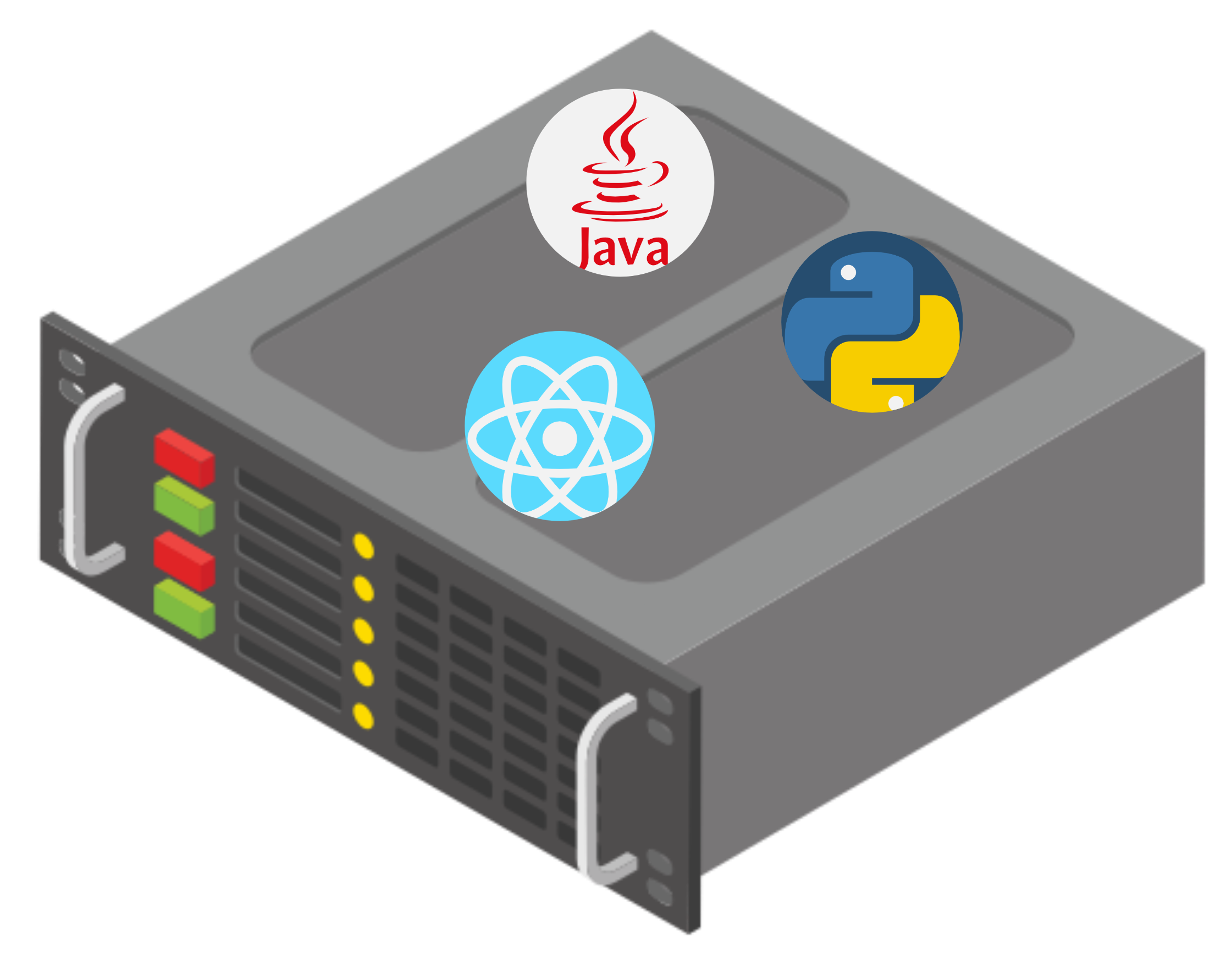
This doesn’t scale well..
We have to make sure permisions and users are properly set up to avoid one app being able to access another app’s files.
What if our Java app requries
OpenSSL 1.1.xwhile Python app now requiresOpenSSL 3.x?We need isolation!
We have two options
- VMs isolate everything with a full OS per app.
- Containers do so while sharing the host kernel.
- Containers are lighter and faster, while VMs provide stronger but heavier isolation.
We’ll choose containers
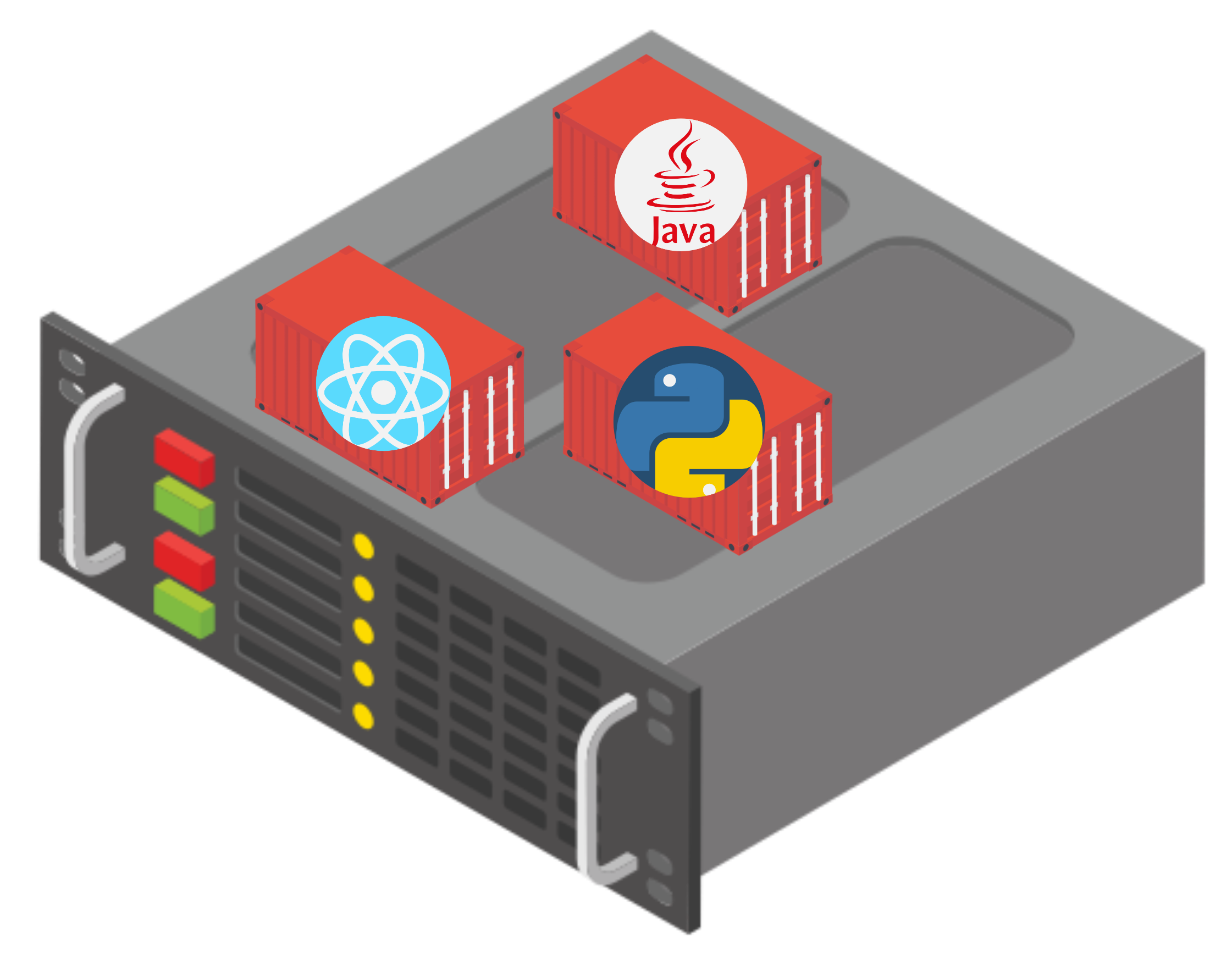
- We’ll build a container for each app.
- Each app can have whichever version of packages it wants and can only access its files.
- From the point of view of the app, it is alone in the server.
But how do we build a container for each app?
Container images
A container runs from an OCI image, which contains:
A root filesystem (the files the app needs)
A config (environment variables, network, entrypoint…)
Layers (incremental filesystem changes: adding files, installing packages, etc)
The image provides:
What will run
How it should run (metadata)
Container runtimes
The runtime is what interprets the image and creates the container process.
It is the one responsible for executing the app inside isolation.
We’ll be using Docker Engine.
The ubuntu image
The
ubuntuimage is extremely simple, built with only one layer.The Ubuntu developers pack all the file system into an archive and that is the first layer.
Tip
We can use docker inspect <image-name> to see details of the image, including which layers it has.
Why is the Ubuntu image only 78MB?
If we do docker image ls ubuntu, we’ll see it is only 78MB. That is because it includes only the userspace filesystem and essential packages.
It does not include:
- kernel
- system services
- drivers
- desktop environment
- init system
- bootloader
A container is not a VM, it’s just a process isolated with its own filesystem.
Dockerfile
Working on top of ubuntu
- We’ve seen how ubuntu image is built with just one layer where all the root filesystem is added.
- But what if I want the image to have additional software?
Dockerfilemakes it possible to add layers and customize image config.
Our first Dockerfile
- To get started, we’ll need to create a file called
Dockerfile. - Inside this file, the first thing is to specify which image are we starting from.
- Now we need to build the image:
The resulting image still has only one layer, which makes sense since there are no changes made to the filesystem.
Our first useful Dockerfile
Let’s see an example that makes more sense.
RUNkeyword lets us execute commands on the base image we are using.CMDkeyword is used to define the default command to be executed when we run a container from this image.
This time, the resulting image will have 2 layers:
- The original layer from
ubuntuimage. - The one we just added by running a command that modifies the file system.
Note
Why am I not using sudo?
Running containers
Once we’ve built an image, we can use docker run command to make Docker Engine execute it.
$ docker run amsa

  __ _ _ __ ___  ___  __ _
 / _` | '_ ` _ \/ __|/ _` |
| (_| | | | | | \__ \ (_| |
 \__,_|_| |_| |_|___/\__,_|
Important
Adding -it to docker run command gives the container an interactive terminal by keeping STDIN open (-i) and allocating a TTY (-t). This is why docker run -it ubuntu gives us a bash terminal while docker run ubuntu doesn’t.
Sharing files
Let’s make figlet print the contents of a file instead, a file that resides in our host machine:
COPY <src-file> <dst-file>is used to make our files available to the container.
Warning
Every time we change the contents of message.txt, we’ll have to rebuild the image.
Layer caching
What is the difference between the Dockerfiles below?
FROM ubuntu
COPY message.txt my-message.txt
RUN apt update && apt install -y figlet
CMD cat my-message.txt | figletFROM ubuntu
RUN apt update && apt install -y figlet
COPY message.txt my-message.txt
CMD cat my-message.txt | figletTip
The fact that layers are incremental allows for caching. If only layer 3 has changed, layer 1 and 2 do not have to be rebuilt. This is something we must keep in mind when writing Dockerfiles.
Working with python
Imagine I have Python project with the following files:
├── main.py
├── message.txt      # The message we want pfiglet to print
├── requirements.txt # pyfiglet declared as a dependency
└── .venv # The python virtual envDockerize our python project
To run my project, I would need to:
If I want this to happen inside a container, I could create the following Dockerfile:
Note
Why didn’t I create a python virtual environment inside the docker container?
COPY . .
- Instead of copying every single file, we’ll usually copy our entire working directory.
COPY . .will copy all files on the context directory inside the container.
Keeping images small
- When working with containers, we should prioritize the images being as small as possible.
- For the container to work, we saw that the only files needed were:
- But since we’re doing
COPY . .we’re also copying.venvandDockerfile, which are useless inside the container.
Dockerignore
- Similar to how
.gitignoreworks, we can create a file named.dockerignore. - From the point of view of the container we are creating, any file or directory listed inside the
.dockerignorewon’t exist. - For our python project, we could write the following
.dockerignore:
One more change
- What could we still improve for our dockerized Python app?
- What happens if I only change the
message.txtfile?
Remember to use the layer cache
- Real projects will have lots of dependencies, and having to reinstall them every time a file changes would be very time consuming.
- It is good practice to first copy only the files needed to install dependencies, and then copy the rest of the project:
Back to the ubuntu image
If we had a look at how could the Dockerfile of the ubuntu image look like, it could be something like:
FROM scratchmeans we start with an empty image.ADDworks likeCOPYbut with added functions, like being able to decompress an archive.CMD ["/bin/bash"]is very similar toCMD /bin/bashread more here.
Recap
So far we’ve seen various keywords we can use in Dockerfiles:
FROM– Defines the base image for the build.RUN– Executes build-time commands.CMD– Specifies the default runtime command.COPY– Copies files from the build context into the image.ADD– Like COPY, but also supports URLs and auto-extracting archives.
Tip
Any line in the Dockerfile that modifies the filesystem of the resulting image creates a new layer. Thus, all the above keywords can create layers except for CMD which is not executed during build-time.
Container networking
A simple webserver
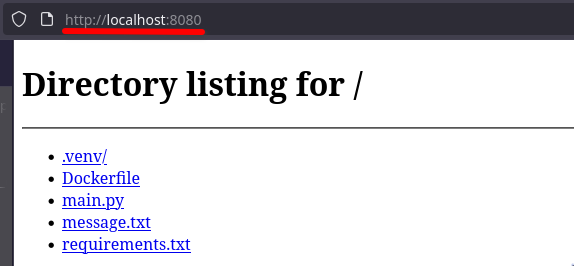
- We are going to use Python to run a simple webserver with
- Executing the command will expose files on the current folder through a web interface.
Containerizing the webserver
A simple Dockerfile that runs the python webserver could be:
We can now build and run the container:
Note
But how do we access the web server? Visiting http://localhost:8080/ doesn’t work..
Of course it doesn’t work!
- Remember containers are designed to be isolated.
- Apart from having their own file system, they also have their own network stack.
- Port 8080 of the container is not the same as port 8080 of the host machine.
Mapping ports
- To access services inside containers, we can map ports, that is, “link” a port on our host machine to a port on the container.
- We’ll use the
docker runcommand to do so by adding the option-p:
- The syntax is
-p HOST_PORT:CONTAINER_PORT, so with the above example, we would be able to access the webserver onhttp://localhost:8085/
Container registries
What is a container registry?
A container registry is a service that stores and distributes container images. Think of it as GitHub but for container images.
Common registries include:
- DockerHub (default registry when using Docker)
- GitHub Container Registry (GHCR)
- GitLab Container Registry
- AWS ECR / Google Artifact Registry / Azure ACR
Tip
When we do docker run ubuntu, Docker is first looking if we already have an image named ubuntu on our system, if we do not, it will download it from DockerHub.
Tip
docker pull ubuntu will do the same but without running the container.
Why do we need registries?
- To share images with collaborators.
- To deploy containers on servers.
- To ensure versioned, reproducible builds.
- To store both public and private images.
DockerHub basics
To upload an image to DockerHub:
- Create an account at https://hub.docker.com.
- Log in from your terminal with
docker login. - Tag your image using the DockerHub format:
- Push it:
What is a tag?
A tag is the version label of an image. For example:
Tip
If no tag is specified, Docker assumes latest tag.
Pulling a specific version
We can use specific versions of images with tags. To do so, add :<tag> at the end of the image name when using docker pull or docker run.
Important
You should always use explicit tags in production. Never rely on latest. In fact, we should rely on hashes for maximum reproducibility.
Example workflow
Summary
- Registries store and distribute container images.
- DockerHub is the default public registry.
- Tags allow versioning images (
v1,v2,latest). - Use explicit tags (never trust
latest). - Registries enable reproducible and portable deployments.
Quizz
Quizz:
Why is the Ubuntu image only ~78MB even though a full Ubuntu installation is several gigabytes?
Why should heavy steps like
pip install -r requirements.txtcome before copying the full project code?How can we ensure specific files and folders are not copied into the container?
What is the difference between
COPYandADDin a Dockerfile?What is the purpose of the
CMDinstruction, and why does it not create a layer?What does the
-p 8085:8080option in docker run actually mean?Why can’t you access a container’s webserver on
localhost:8080unless you map a port?Why is relying on the
latesttag dangerous in production environments?
References
References:
Youtube playlist on containers: https://www.youtube.com/playlist?list=PLozcbFx8FoPH30kYPbPuPsvxASWoLo9XB
Docker docs on
CMDshell vs exec: https://docs.docker.com/reference/dockerfile#shell-and-exec-form
Additional Exercices
Why is it dangerous to run
docker run -v /:/host alpine?Why is
docker run --network hostconsidered dangerous?Build an image using multi-stage builds.
Activity 4
Ready to have some fun? Check out the fourth AMSA activity here!

AMSA 2025-2026 - 🏠 Home